Why Did My B2B Buyer See the Wrong Payment Terms at Checkout?
B2B buyer got the wrong payment terms at Shopify checkout? Work through this checklist: buyer context, location terms, draft orders, and rule order.
Key Takeaways
- 1Shopify resolves B2B payment terms at checkout from context: the logged-in buyer, the company location, and any rules on top.
- 2No terms at all usually means no B2B checkout: the buyer wasn't logged in or isn't a contact on the company.
- 3Terms and deposits live on the company location, so a buyer ordering for a different location gets that location's terms.
- 4With first-match rules, a broader rule higher in the list silently beats the one you expected. Order is the usual bug.
- 5TermStack's Simulator replays a real company, location, and order total against draft or published rules and shows which rule matched.
A buyer emails you a screenshot. They were supposed to get Net 60, and they got the wrong payment terms at checkout: pay in full, right now. Or the reverse, a brand-new account sailed through on Net 30 when you wanted a deposit.
The cause is almost never mysterious. Wrong payment terms on Shopify come from a short list of causes, and they show up in a predictable order. This post is the checklist I run through, from "is this even a B2B checkout" down to rule-level mistakes if you run terms through an app.
Why payment terms go wrong at checkout
Payment terms on Shopify Plus aren't a property of the buyer. They're resolved at checkout, from the context the buyer is checking out in. Change the context and you change the terms, even with the same person, the same cart, and the same company.
That's why "but I set Net 60 on that company" isn't the end of the investigation. Checkout doesn't ask what you had in mind for the company. It asks who is logged in, which company location they're buying for, and what terms that location carries. If you use a rules app, it then asks which rule matches first.
Every item on the checklist below is one of those questions. Work top to bottom, because the early checks rule out whole categories of problems in seconds.
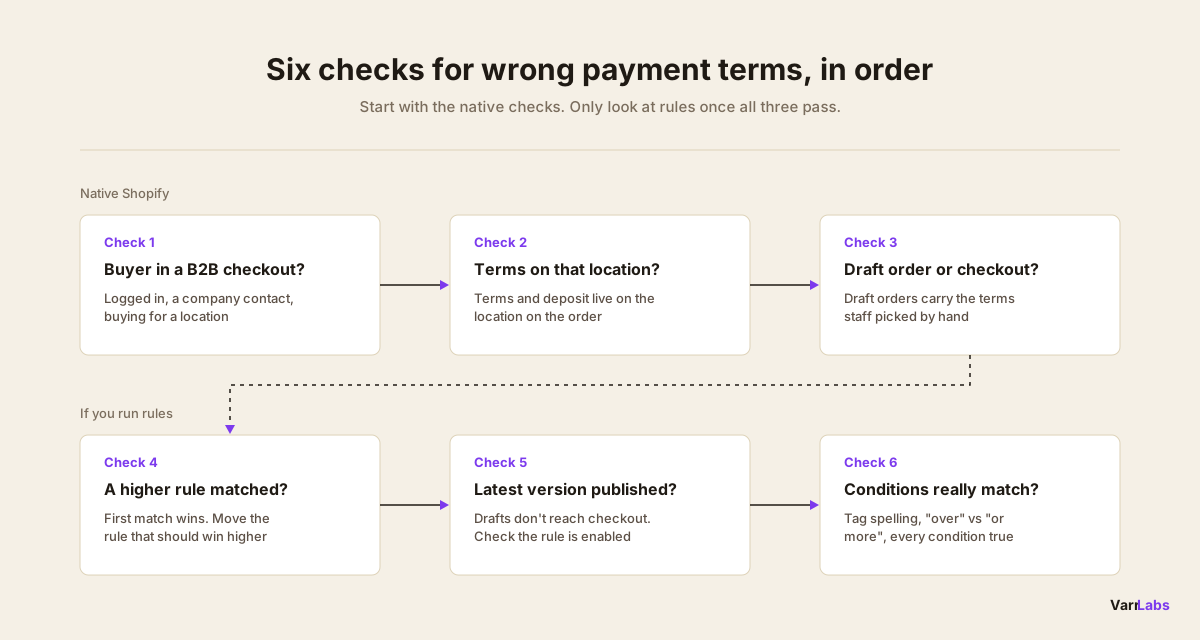
Checkout resolves terms from context: the logged-in buyer, the company location, and any rules on top. Debug in that order.
The native checks for wrong payment terms at checkout
Start here even if you use an app. If any of these three fail, no rule will fix it.
1. Check the buyer is in a B2B checkout
Payment terms only exist in a B2B checkout. That means the buyer is logged in, their customer account is a contact on a company, and they're buying for one of that company's locations.
If any of that is missing, checkout treats them like a regular retail shopper. No terms, pay now. This is the single most common cause I see, and it usually looks like one of these:
- Not logged in. The buyer added to cart as a guest, or their session expired, and they checked out without signing in.
- Wrong customer record. The person has two customer accounts under different emails, and only one is attached to the company.
- Not a company contact. The customer exists, but nobody added them as a contact on the company in Customers → Companies.
- Testing as staff. You tested with your own account or a non-B2B test customer, saw no terms, and assumed the setup was broken.
Open the order in your admin. If it doesn't show a company and location, the buyer never had a B2B checkout, and nothing further down this list matters until that's fixed.
2. Check the terms on the location they bought for
Payment terms on Shopify Plus live on the company location, not on the buyer. A company with three locations can carry three different terms, and a location with no terms gives the buyer nothing.
Buyers with access to more than one location choose which one they're buying for. If your buyer placed the order for the Denver warehouse, the Denver location's terms apply, even if the head office location has the Net 60 you were thinking of.
Go to Customers → Companies → [Company], click the location on the order, and check its payment terms. Confirm two things: that the terms are what you expect, and that there isn't a deposit on that location you forgot about. A 30% deposit left over from a first order keeps applying to every order from that location until someone removes it.
3. Check whether it was a draft order
If your team built the order as a draft order, the terms on it are whatever the person creating it chose. That's a manual process, and it's a separate path from the buyer checking out on their own.
This cuts both ways. A draft order with the right terms doesn't prove checkout is configured correctly, and a draft order with the wrong terms doesn't mean checkout is broken. When a buyer reports the wrong terms, confirm whether they checked out themselves or paid an invoice your team sent. The draft orders vs TermStack post covers why the two paths drift apart over time.
Rule mistakes that cause wrong payment terms
If the native checks pass and you run payment terms through a Payment Customization Function or an app, the answer is usually in the rule list. The examples below follow how TermStack works: rules evaluate top to bottom, the first match wins, and edits stay in draft until you publish. If you use a different app, check how it handles each of these.
4. A higher rule matched first
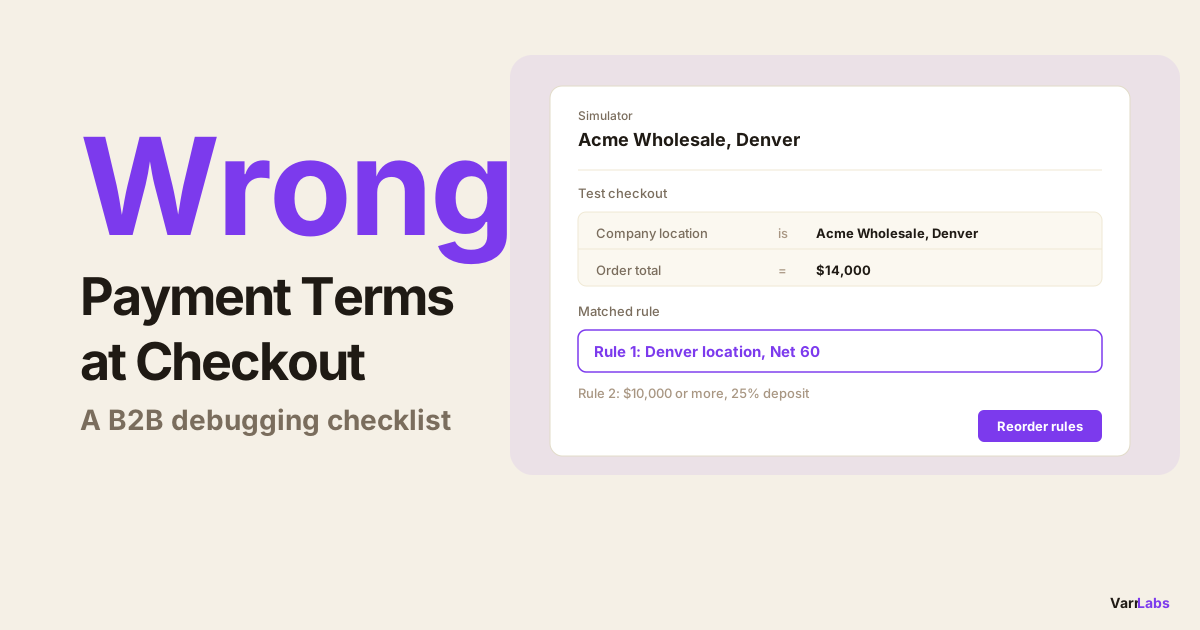
With first-match rules, every rule below the match is ignored for that order. Here's how that bites. Say you have two rules:
- Company location is "Acme Wholesale, Denver", apply Net 60.
- Order total is $10,000 or more, apply Net 30 with a 25% deposit.
Acme's Denver location places a $14,000 order. You expected the deposit. The buyer got Net 60 with nothing down, because rule 1 matched first and rule 2 never ran. Both rules are correct on their own. The order is the bug.
The fix is to decide which condition should win and put that rule higher. If large orders should always carry a deposit, the order total rule goes first, and the Denver rule catches everything below $10,000. The payment terms by order value post covers how to pick those thresholds.
5. The fix is saved but not published
Editing and going live are separate steps. Changes are saved as a draft and only reach checkout when you publish. It's easy to fix a rule, see it look right in the editor, and not realise checkout is still running the previous version.
Check that the latest version is published and that the rule is enabled. A disabled rule is skipped at checkout even if it's in the list and looks correct. There's also a setting that switches checkout enforcement on or off, so confirm it's on.
6. A condition doesn't match what's on the buyer
The last category is the most tedious: the rule is live, it's in the right place, and it still doesn't match. That almost always comes down to a condition that doesn't say what you think it says.
- Tag typos. The rule says
wholesale-goldand the customer is taggedWholesale Gold. They're not the same tag, so the rule doesn't match. - Boundary values. "Greater than $10,000" and "$10,000 or more" behave differently on a $10,000 order. Pick the one you mean.
- Every condition has to match. Conditions inside one rule combine with AND. A rule for "tag is
wholesale-goldand order total is $5,000 or more" does nothing for a gold buyer ordering $4,800. - Wrong location picked. The rule targets the company's head office location, and the buyer ordered for a branch.
When no rule matches, the fallback decides. You choose whether an unmatched order keeps the terms already on the company location or gets a default you define. If you've forgotten which one you picked, that's often where an "unexpected" term comes from. More of these patterns are in the five payment terms mistakes post.
When the checklist isn't enough: replay the order
Walking the checklist by hand works for the native checks. For rule problems it's faster to replay the exact order and watch which rule wins.
In TermStack, the Simulator lets you pick the real company, customer, and location from your store, enter the order total and tags, and run it against either your draft rules or what's currently published. It shows which rule matched, the terms and deposit it applied, and the evaluation trace.
For the Acme example, the Simulator would show rule 1 as the match. You'd reorder the rules, run the same scenario against the draft, see the order total rule match with the 25% deposit, and then publish. No test orders, and no guessing which version checkout is running.
If a publish was what broke it, version history lets you roll back to the previous ruleset in one click while you work out the fix, and the audit log shows who changed which rule and when.
TermStack's Simulator replays a real company, location, and order total against your draft or published rules and shows the rule that matched, with one-click rollback if a publish went wrong. Try TermStack free for 14 days →
Quick reference: wrong payment terms by symptom
| Symptom | Most likely cause | Where to check |
|---|---|---|
| No terms at all, pay now | Buyer not in a B2B checkout | The order: does it show a company and location? |
| Terms from a different location | Buyer bought for another location | The location on the order and its payment terms |
| Unexpected deposit | Deposit left on the location, or a rule adding one | Location payment terms, then the rule that matched |
| Right on draft orders, wrong at checkout | Two separate paths | Whether the buyer checked out or paid an invoice |
| Rule "ignored" | A higher rule matched first | Rule order, then a simulator |
| Fix didn't take effect | Edit saved as draft, or rule disabled | Published version and rule status |
| Rule never matches | Condition typo or boundary | Tag spelling, "greater than" vs "or more" |
Frequently asked questions
Summary
Wrong payment terms at checkout almost always trace back to context. Check that the buyer was in a B2B checkout, that the location on the order carries the terms you expect, and that you're not comparing a draft order to a real checkout. If all three pass and you run rules, look at rule order first, then whether the fix is published, then the conditions themselves.
- Try the live demo store → to see payment terms rules applying at a real B2B checkout.
- Want help setting up your rules? I'll do it with you on a free 30-minute call: your terms, tested in the Simulator and live at checkout before the call ends. Email termstack@varrlabs.com.
As your rule list grows, TermStack keeps it debuggable: a simulator to replay any order, version history to roll back a bad publish, and an audit log of who changed what.