How to Set Up Net 30 Payment Terms on Shopify Plus (Step-by-Step Guide)
Net 30 setup on Shopify Plus takes five minutes per company. This guide walks through the complete process, covers what Shopify can and can't do natively, and explains the decisions to make before you configure anything.
Key Takeaways
- 1Net 30 on Shopify Plus is set per company location: Customers > Companies > select company > edit Payment Terms > Net 30.
- 2Shopify does not auto-collect payment when terms expire — overdue orders require manual follow-up.
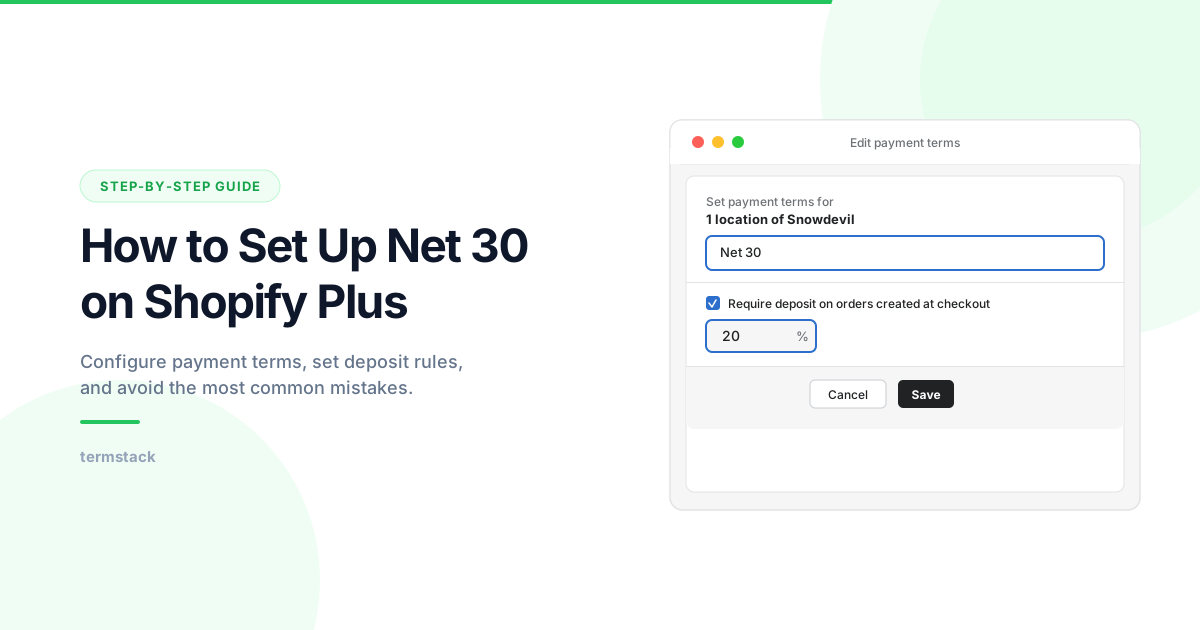
- 3You can combine Net 30 with a deposit requirement (e.g. 20% upfront, 80% due in 30 days).
- 4For conditional terms based on order value or buyer type, you need the Payment Customization Function API or a rules engine like TermStack.
Net 30 payment terms give your B2B buyers 30 days to pay after an order is placed. On Shopify Plus, setting up Net 30 is straightforward, but there are important limitations and best practices that most guides skip over.
This article walks you through the complete setup process, explains what Shopify can and can't do natively, and covers the decisions you should make before you configure anything. If you're new to B2B payment terms entirely, start with the complete guide to B2B payment terms on Shopify Plus.
What Net 30 Actually Means on Shopify Plus
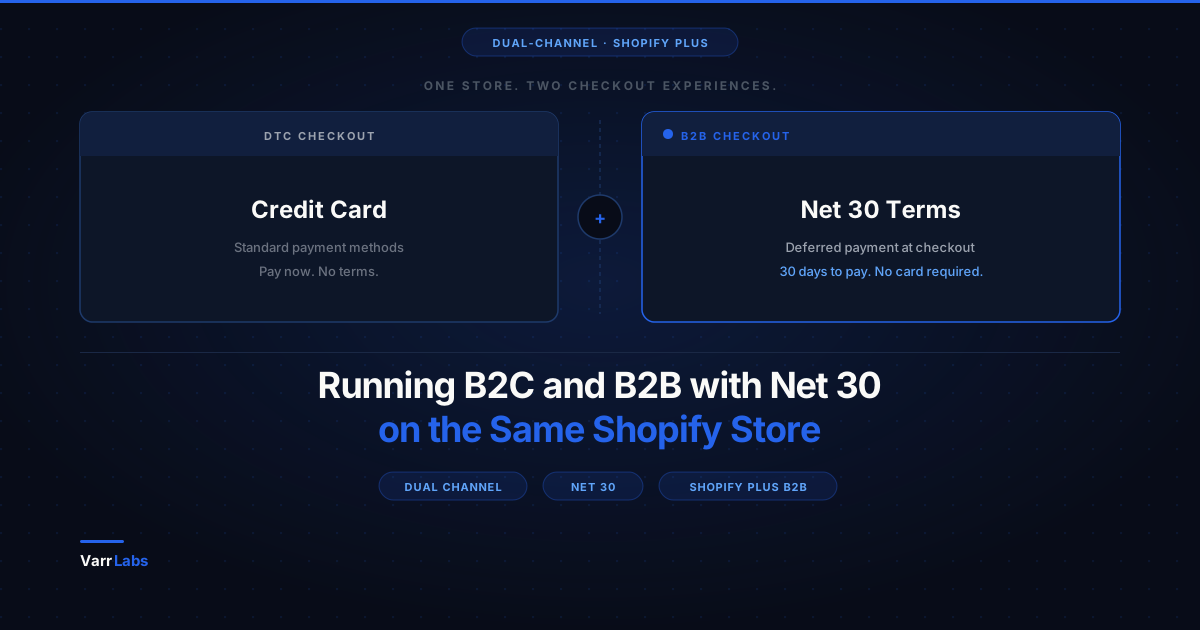
When you assign Net 30 terms to a company location in Shopify Plus, here's what happens at checkout: the B2B buyer sees a "pay later" option instead of entering a credit card. They place the order, Shopify records it, deducts inventory, and starts a 30-day countdown to the payment due date.
The buyer can pay anytime during that window by logging into their customer account and clicking "Pay now." If the 30 days pass without payment, the order shows as "Overdue," but Shopify does not automatically collect payment. You need to capture it manually.
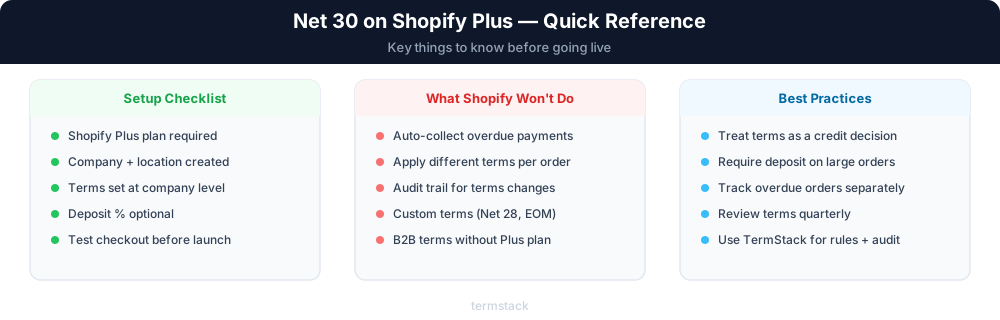
This is an important distinction. Net 30 on Shopify Plus is a terms assignment, not an automated collections system. You're giving the buyer permission to defer payment. The follow-up is on you.
Before You Start: Three Decisions to Make
1. Which companies get Net 30?
Not every B2B buyer should get 30-day terms. Net 30 directly affects your cash flow, and every dollar sitting in accounts receivable for 30 days is a dollar you can't reinvest.
Consider limiting Net 30 to buyers who meet criteria like established order history with your store, minimum order thresholds (e.g., orders above $5,000), or verified credit references. New buyers or small first-time orders might start with "Due on receipt" or "Due on fulfillment" and graduate to Net 30 after proving reliability.
2. Should you require a deposit?
Shopify Plus lets you combine Net 30 with a deposit requirement. For example, you can require 20% upfront at checkout with the remaining 80% due in 30 days. This reduces your credit exposure while still offering the flexibility buyers expect.
Deposits are especially useful for large orders, custom or made-to-order products, and new buyer relationships where you don't yet have payment history.
3. Same terms for every order, or different terms for different situations?
This is where Shopify's native B2B hits its ceiling. Natively, you assign payment terms at the company location level, meaning every order from that buyer gets the same terms regardless of size, product mix, or other factors.
If you need different terms based on order value (Net 30 for orders under $10K, Net 60 for VIP accounts), product category, or buyer tier, you'll need to go beyond native settings. The Shopify Payment Customization Function API supports dynamic terms logic, and apps like TermStack provide a no-code rules engine for this. Note: the Payment Customization Function API requires API version 2025-07 or later and supports a maximum of 25 customizations per store.
Step-by-Step: Setting Up Net 30 on Shopify Plus
Prerequisites
Before configuring payment terms, make sure you have a Shopify Plus plan (B2B features are Plus-only), B2B enabled in your store settings, and at least one company created with a company location.
If you haven't set up B2B companies yet, go to Customers → Companies → Add company in your Shopify admin first.
Step 1: Navigate to the Company
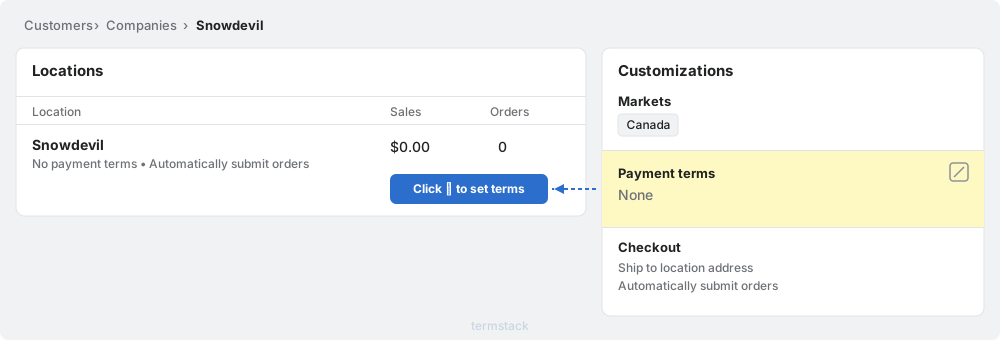
Open your Shopify admin. Go to Customers → Companies. Click on the company you want to configure.
Step 2: Set Payment Terms at the Company Level
In the company profile, find the Payment terms section. Click the edit icon. From the dropdown, select Net 30. Click Save.
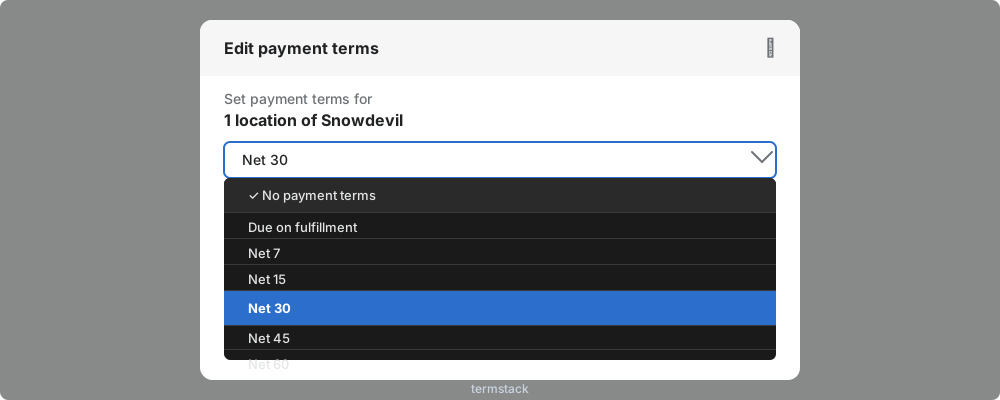
This applies Net 30 as the default for all locations under this company.
Step 3: Override at the Location Level (Optional)
If a company has multiple locations that need different terms, you can override per location.
In the company profile, scroll to the Locations section. Click on a specific location. Find the Payment terms section and edit it. Select Net 30 (or a different term for this location). Click Save.
Location-level terms override company-level defaults. This is useful when a company has locations in different risk tiers or regions with different credit policies.
Step 4: Add a Deposit Requirement (Optional)
While editing payment terms for a company or location, check the option Require deposit on orders created at checkout. Enter the deposit percentage (e.g., 20%).
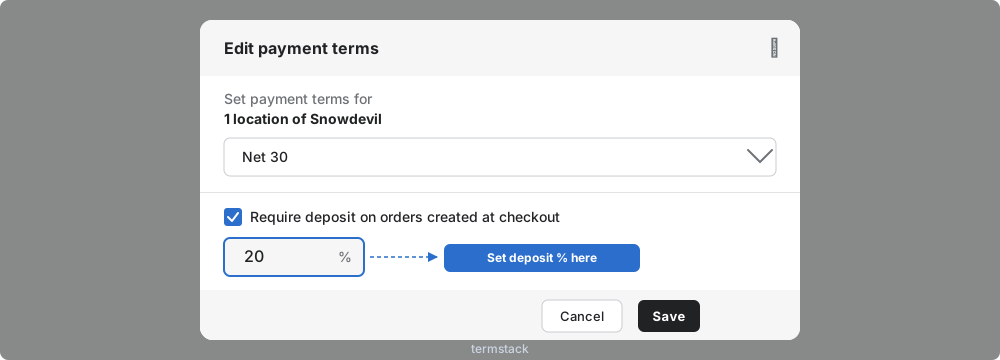
Now when this buyer checks out, they'll pay the deposit immediately and have 30 days for the balance.
Step 5: Bulk-Assign Terms to Multiple Companies
If you need to set Net 30 for many companies at once, go to Customers → Companies. Select multiple companies using the checkboxes. Use the bulk action to assign payment terms.
This saves time during initial B2B setup or when migrating from manual workflows.
Step 6: Test the Checkout Experience
Before going live, test the buyer experience. Log in as a B2B customer (or use a test account). Add products to cart and proceed to checkout. Verify that the Net 30 option appears correctly. If you set a deposit, confirm the deposit amount calculates correctly. Place a test order and check that the order shows the correct payment terms and due date in your admin.
What Happens After the Order Is Placed
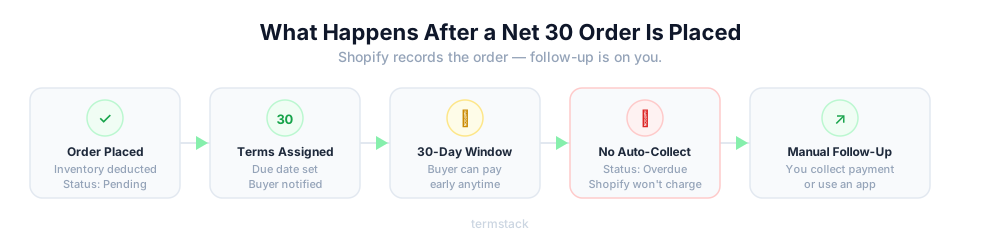
Once a Net 30 order comes through, here's the workflow.
Immediately: The order appears in your admin with payment status "Pending" and terms "Net 30." Inventory is deducted. The buyer sees the order in their customer account with the due date displayed.
During the 30-day window: The buyer can log in and pay early at any time by clicking "Pay now." If they saved a credit card, they can pay with one click.
At 30 days: If unpaid, the order status changes to "Overdue." Shopify does not auto-charge saved cards or send collection notices. This is manual on your end.
Common Mistakes to Avoid
Giving Net 30 to everyone by default. Treat payment terms as a credit decision, not a checkout convenience. Start restrictive and expand as buyers prove reliable.
Not tracking overdue invoices. Shopify's Orders page shows payment status, but it's easy to miss overdue B2B orders mixed in with DTC orders. Set up a filtered view or automated report for B2B orders past their due date.
Ignoring the deposit option. For orders above a certain threshold, requiring even a 10-20% deposit dramatically reduces your downside risk. It also signals to buyers that terms are a privilege, not an entitlement.
Setting static terms and forgetting them. B2B relationships evolve. A buyer who started at Net 30 for $5K orders might be doing $50K orders six months later, at which point you may want Net 60 terms, a deposit requirement, or a different structure entirely. Review terms quarterly.
Not documenting who changed terms and why. If your finance team can't answer "why does this buyer get Net 30 while that one gets Net 60?" you have a governance problem. Shopify's native B2B doesn't provide an audit trail for terms changes. TermStack logs every change with a timestamp and reason, so you always have a record if compliance or finance ever asks.
When Native Net 30 Isn't Enough
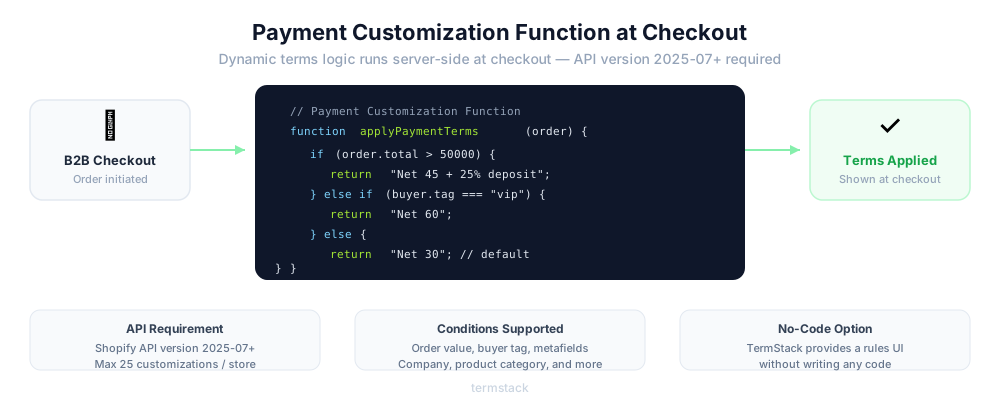
Shopify Plus's native payment terms work well for straightforward setups: Company A always gets Net 30, Company B always gets Net 60.
But B2B payment terms rarely stay simple. Here are signs you've outgrown native terms:
You need different terms based on order size, not just the buyer. You're managing exceptions manually (sales reps requesting one-off terms for specific orders). Your finance team needs an audit trail of who changed which terms and when. You want to test terms logic before applying it to real orders. You have rules like "Net 30 for orders under $10K, deposit required above $25K" that vary by condition.
For these scenarios, the Payment Customization Function API allows dynamic terms assignment at checkout. Note that it requires API version 2025-07 or later and supports a maximum of 25 customizations per store. Purpose-built apps like TermStack provide a no-code interface for creating rules-based payment terms with simulation, version control, and full audit logging, without writing code. If you're currently running payment logic through Shopify Scripts, see the guide on migrating B2B payment terms from Scripts to Functions.
TermStack lets you build rules like "Net 30 under $10K, Net 45 above it" using a visual editor — with a built-in simulator to test changes before they go live. Try TermStack free for 14 days →
Quick Reference: Shopify Plus Payment Terms Options
| Term | What It Means | When to Use |
|---|---|---|
| Due on receipt | Payment required immediately | New buyers, low-trust accounts |
| Due on fulfillment | Payment due when order ships | Standard for cautious credit |
| Net 7 | 7 days to pay | Short-cycle goods, small orders |
| Net 15 | 15 days to pay | Moderate trust, mid-size orders |
| Net 30 | 30 days to pay | Established buyers, standard B2B |
| Net 45 | 45 days to pay | VIP accounts, large enterprises |
| Net 60 | 60 days to pay | Strategic accounts, high volume |
| Net 90 | 90 days to pay | Enterprise contracts, high trust |
All of these can be combined with a deposit requirement on Shopify Plus.
Frequently Asked Questions
Summary
Setting up Net 30 on Shopify Plus takes about five minutes per company. Navigate to the company profile, select the term, optionally add a deposit, and save. The real work is deciding your credit policy: who qualifies, what thresholds apply, and how you'll handle overdue payments.
For most merchants starting with B2B, native terms are enough. As your buyer base grows and your terms logic gets more complex, TermStack gives you conditional rules, a full audit trail, and a simulator to test changes before they go live, so payment terms stay manageable as you scale.